Skip to content
View in the app

A better way to browse. Learn more.

Shrimp Keepers Forum

A full-screen app on your home screen with push notifications, badges and more.

To install this app on iOS and iPadOS
  1. Tap the Share icon in Safari
  2. Scroll the menu and tap Add to Home Screen.
  3. Tap Add in the top-right corner.
To install this app on Android
  1. Tap the 3-dot menu (⋮) in the top-right corner of the browser.
  2. Tap Add to Home screen or Install app.
  3. Confirm by tapping Install.

New Library Article - How to easily attach images to posts!

Featured Replies

SKFA's forum platform has come a long way since the first unfriendly user interfaces we had. Today's forum platform is so much easier for the users to attach a picture to their posts.

Let's go through the various options you have of posting a picture or a URL to a picture.

The easiest way to attach photos is to drag your picture file to the bottom of this editing window...

59091847dde68_Dragto.jpg.142f39693040f432b043083a4d8ebbae.jpg

Several files can be dragged into this space for upload to the SKFA server.


The next option for inserting pictures into your post is the "Choose Files" link.

590918482ec7e_Choosefiles.jpg.62461056216a7c4dc7f701f9e0ea9436.jpg

Clicking on the choose files link will open up a windows explorer window for you to locate and select the appropriate files for upload.


Once all the files you want are uploaded, you will see a window with the thumbnails of your pictures like the screenshot below ...

590918489e3d2_Click2add.jpg.fe86858a2d44059865de1b8627a0e596.jpg

Click on the '+' symbol to insert the picture your post. The picture will be inserted where your cursor was.


The next option for inserting pictures into your post is the "Insert other media" pull down menu.

590918486d5ab_Insertother.jpg.ccef12b47f6315cd4ad382b2d3d50e3b.jpg

This menu give you two other options to locate the picture you want to insert.

The "Insert existing attachment" option will open up a window, similar to the image below, of all your past pictures that were uploaded to the SKFA server. You can browse this selection of previously uploaded pictures to attach to your new post. Note: images stored on external servers like Flickr, Photobucket or Imgur will not show up on this list.

existing.jpg.a3822a57a43d76ec6169bd2051ed2109.jpg


The second pull down menu is the "Insert image from URL" option. This option opens up a window where you can paste in the url of a picture or video stored externally to SKFA. 

URL.jpg.e4807dd63edfb0a2904b2771639cda5f.jpg


Hopefully with 4 methods of attaching pictures, you will find one that works best for you.


Don't forget that there is a file Total attachment limit as well for new members and members. 

New Members are able to only upload up to 1MB of pictures/videos.

While Members are able to upload up to a total of 10MB of pictures/videos.

These quota limits are removed once you become a subscription member level of Premium, Platinum or Diamond levels. 

The membership fees goes towards a good cause - the smooth running of this forum.


View full article

  • Author
post-953-14153900142908_thumb.jpg
  • Author

Hrmmm.... Having trouble posting my pics lol sorry guys i guess thats it until i figure out what im doing wrong!

  • Author

I just traded for some blue bolts with red bolt genes and some mosura mishlings!

I just traded for some blue bolts with red bolt genes and some mosura mishlings!


Hrmmm.... Having trouble posting my pics lol sorry guys i guess thats it until i figure out what im doing wrong!

I sent you a pm that may help ?

Easiest way to attach photos is to click on the "More Reply Options" button on the bottom right of this editing window...

post-599-0-03715500-1415404305_thumb.jpg


You get a more advanced editing screen that will allow you to "Attach Files".


post-599-0-61358500-1415404387_thumb.jpg


Select the file you want to upload, let it complete the upload, then click "add to post".


post-599-0-62629000-1415404581_thumb.jpg


Don't forget that there is a file limit as well.

It's a generous 5Mb.

Buutttttt I'm not sure if regular members (non premium members) have a lower limit.


You could also use an external photo hosting site like Photobucket, you just need to copy the "img" link address and paste it into this editing window.


This post has been promoted to an article

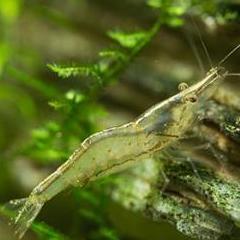
Nice looking shrimp dude, well done! :thumbsu:

Hey bro! Glad to have you here!!

  • Author

Hey bro! Glad to have you here!!

hey hey! Thought i recognized your name!

Great work!! Tank residents look brilliant!!

  • Author
post-953-1416076786187_thumb.jpghere's my golden momma!
  • HOF Member

Nice work. How about some full tank shots as well.  :jig:

  • Author

Ill try and take a full tank shot tonight.. Right before bed last night i found my first batch of shrimplets in the tank!!! YaY!!!

  • Author
post-953-14163201186123_thumb.jpg
  • Author
post-953-14163201558957_thumb.jpg
  • Author
post-953-14163201887011_thumb.jpg

Nice tank. Assuming the large plants are buces?

  • Author

Yup.. Im a buce and moss nut... I actually dont have any other plants in my tanks lol... In total i probably have 40 or so different buce.. The buce in the photos are emerald carpet and theia mini

Edited by countryboy12484

  • Author

The mosses in the photos are, spiky moss, mini java moss, stringy moss, callicostella panti jorn Malaysia and mini taiwan moss

  • HOF Member

Nice, what are they eating?

  • Author

Thats the snowflake food

Nice one! How did you achieve the "floating" moss pads?

  • Author

They are called "moss ledges" a friend of mine makes them out of stainless mesh and suction cups... You can also achieve the same thing with cholla wood and a air line holder

Very nice dude, love the moss plates, very cool idea & great use of useless space! :thumbsu:

  • 2 weeks later...
  • Author

Update! Now have a berried blue bolt and a berried BKk!

Create an account or sign in to comment

Account

Navigation

Search

Search

Configure browser push notifications

Chrome (Android)
  1. Tap the lock icon next to the address bar.
  2. Tap Permissions → Notifications.
  3. Adjust your preference.
Chrome (Desktop)
  1. Click the padlock icon in the address bar.
  2. Select Site settings.
  3. Find Notifications and adjust your preference.