
Leaderboard
-

Squiggle
Members5Points10433Posts -

jayc
Moderators3Points6248Posts -

countryboy12484
Members1Points76Posts -

newbreed
Members1Points3152Posts
Popular Content
Showing content with the highest reputation on 07/11/14 in all areas
-
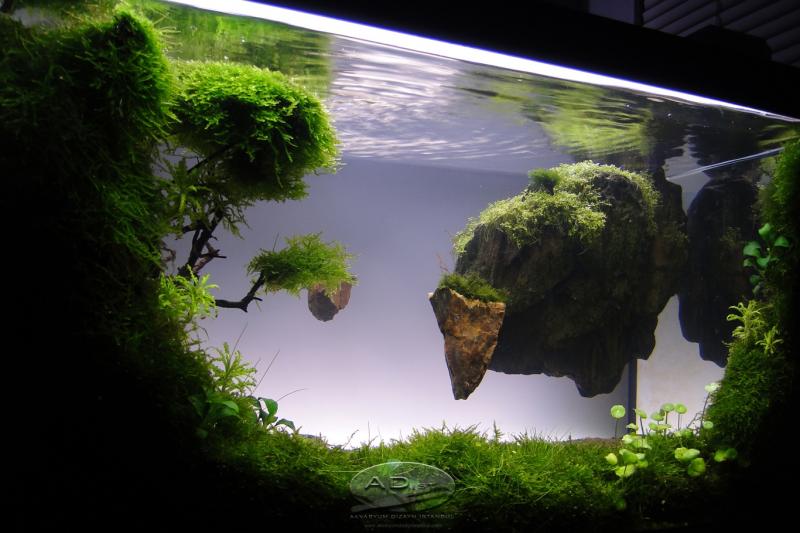
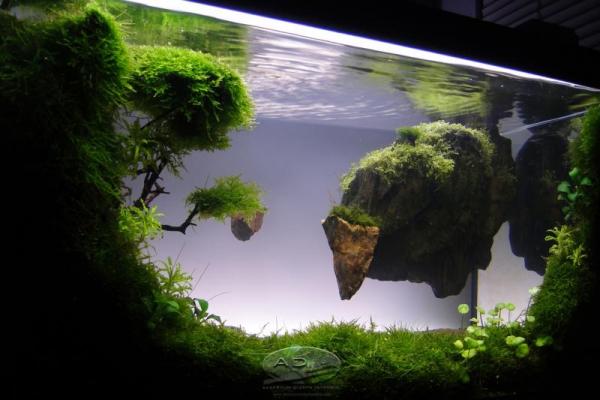
There are some guys in Turkey who have already created a "Pandora" tank & it looks spectacular!

 2 points
 -
1 pointHi everyone. .. im a shrimp keeper from the US. Thought I would join your community in hopes of sharing some knowledge from across the pond!1 point
-
Welcome to the forum, hope you have as much gun here as we do!1 point
-
Here is how to place your votes using the new Photo Comp Tab. Once you have your selected competition open, scroll down to look at the entries. As mentioned, it may be worth waiting until all entries are placed before starting to vote. That way you can vote from left to right, if you wish to vote/rate them all. On PC, it is suggested you right click on the images and open in a new window. This will show the images in their full size rather than just as a thumbnail! For iPad users this happens when you tap on the image automatically! Below the entry, next to the stars, there is a (vote) option, click on this to begin. A pop up window will appear with the entry and rating criteria. Each criteria is awarded out of five. These are added over all votes and combined as a grand total. Hover your mouse over the stars until the desired amount of stars is reached. Click once you are happy with the rating amount. The image below shows the first two criteria have been voted on. Once you click on the stars, the amount you award, they turn blue to confirm the rating. Then revert back to yellow. Once you have finished rating click on the 'x' at the top right to closed the window. You have now rated this image. Move onto the next image and repeat. You do not have to vote/rate every image, though if you can it will give a better overall rating for each entrant. Important note, once you have voted, you cannot rate/vote that image again. (Though we are considering having an option for this in future rounds, in case of incorrect ratings, etc.) I hope this has been helpful.1 point
-
1 point